Connect Your ClickUp with CodeValid
Connect ClickUp with CodeValid to automatically pull your task and requirement data into the workspace. This guide walks you through connecting ClickUp, selecting the right workspace, syncing tasks, and enabling webhooks so updates flow automatically.
Make sure you have ClickUp access to the workspace you want to connect and that your ClickUp account can authorize external applications.
Step 1: Connect ClickUp to CodeValid
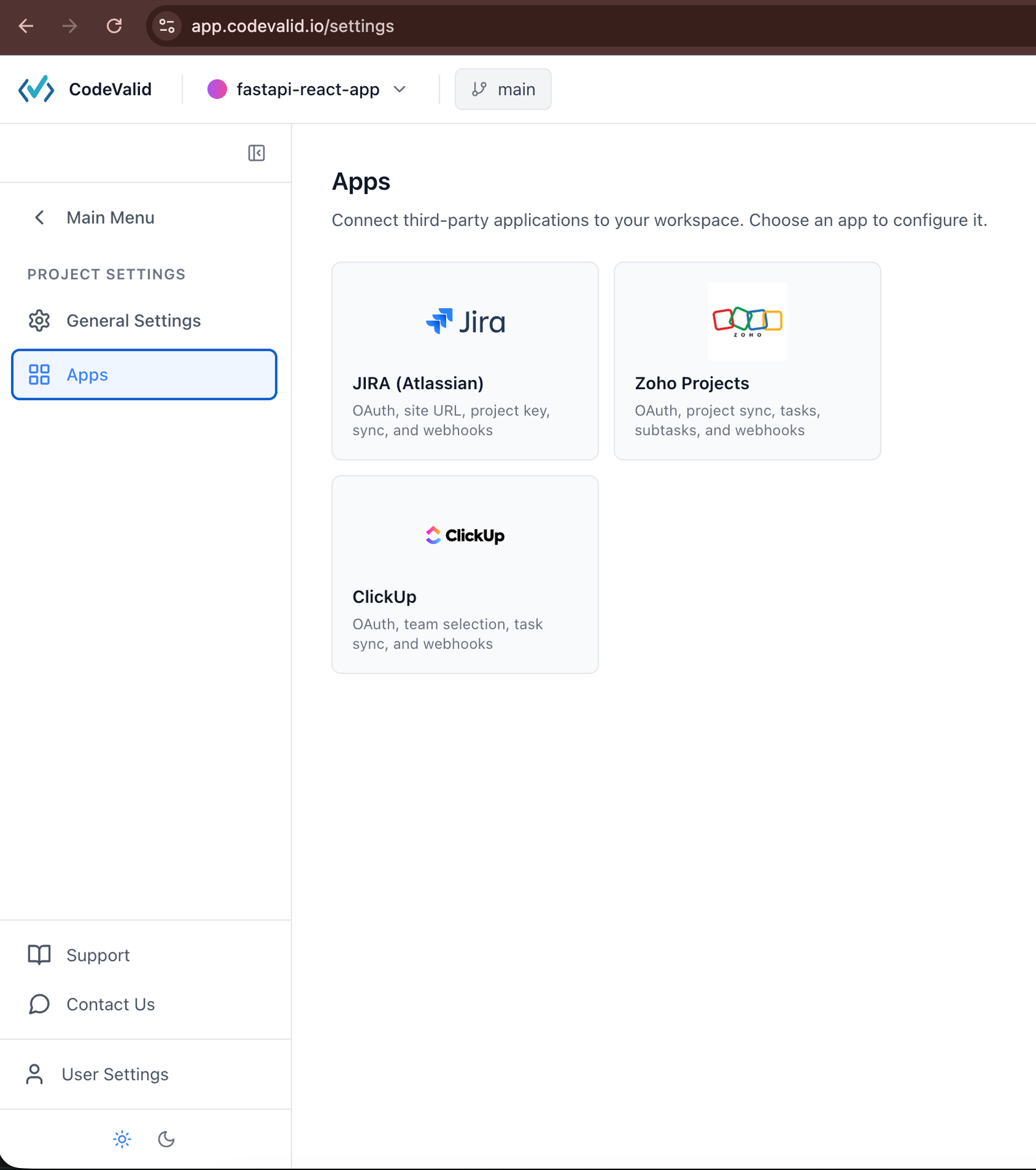
- Open Workspace settings in CodeValid and navigate to Apps.
- Click ClickUp.
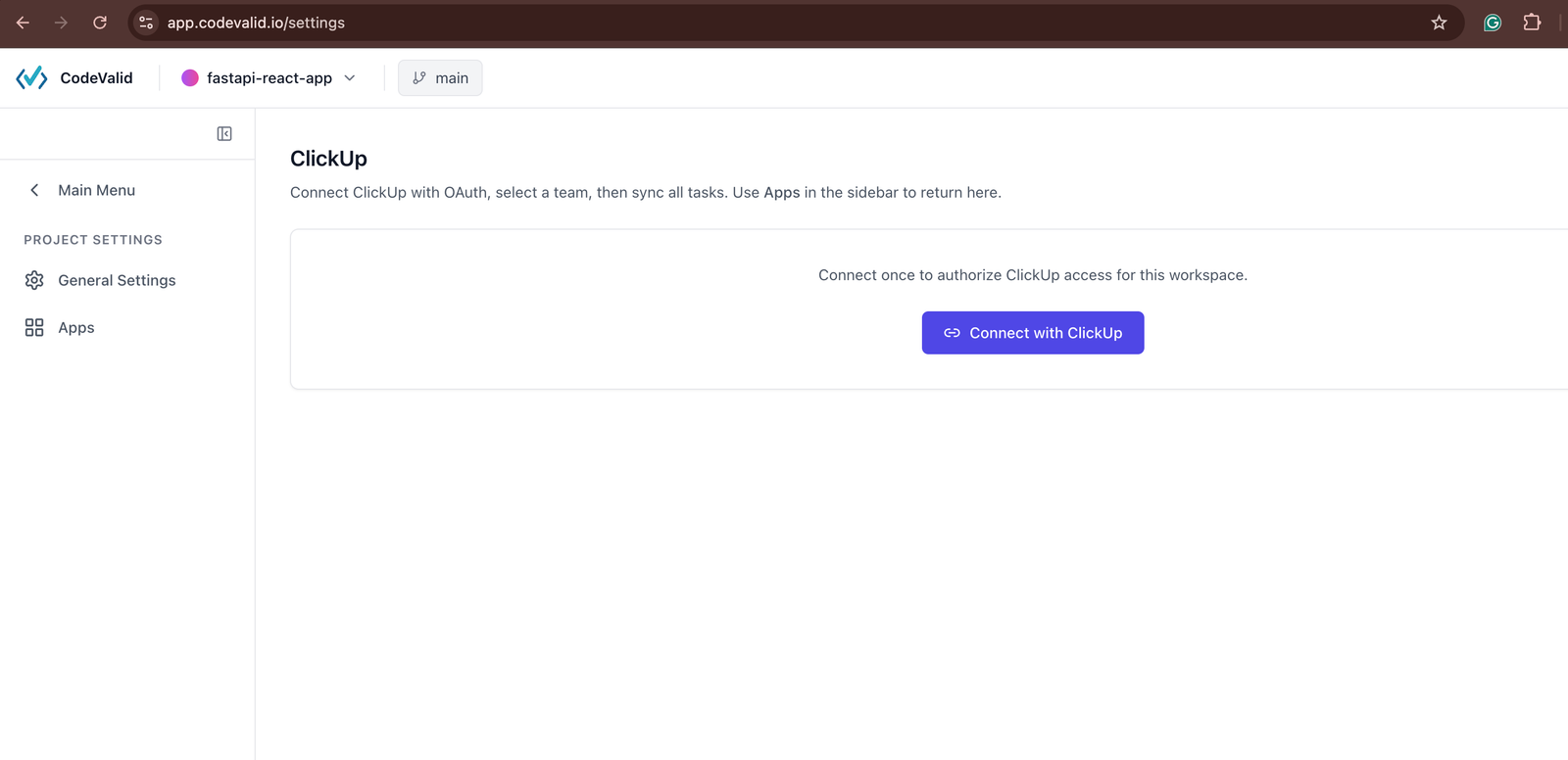
- Click Connect with ClickUp.
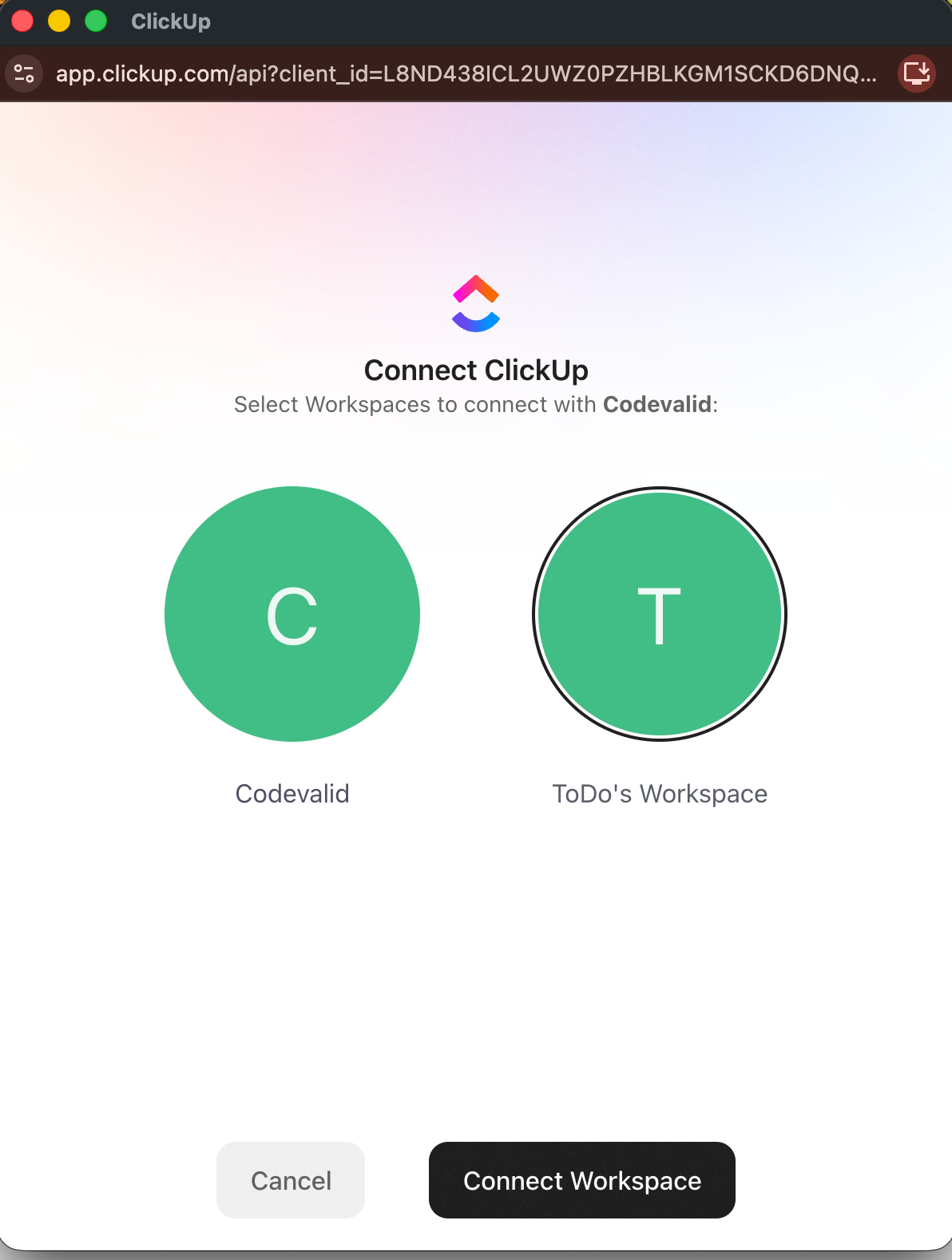
- Authorize CodeValid to access your ClickUp account.
Once authorized, CodeValid can read your ClickUp workspaces and prepare the integration.
Step 2: Select a ClickUp workspace
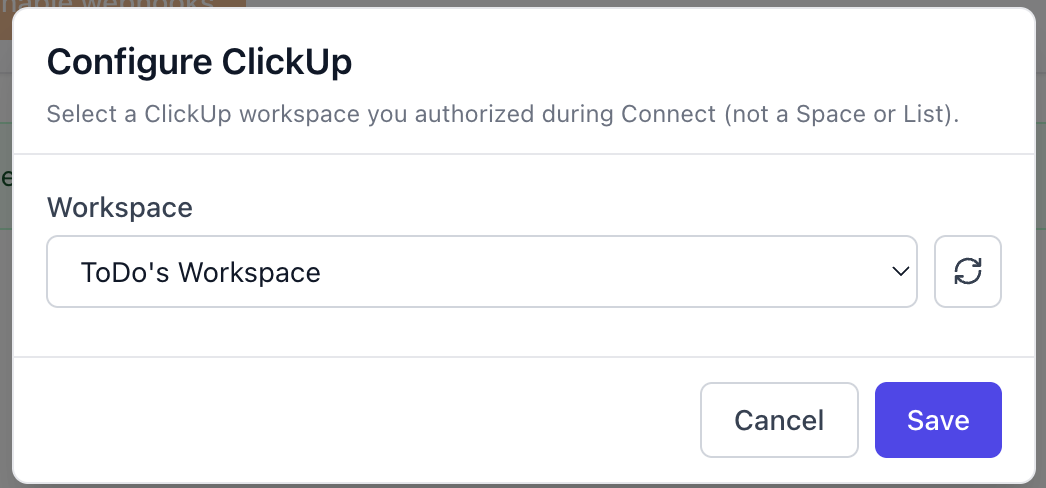
- After authorization, open the ClickUp app in CodeValid again.
- Choose the ClickUp workspace (team) you want to map to this CodeValid workspace.
- Save the configuration.
Note: CodeValid connects at the workspace/team level, not at the Space or List level. Select the ClickUp team that contains the projects and lists you want tracked.
Step 3: Sync tasks from ClickUp
- In the ClickUp configuration page, click Sync tasks.
- CodeValid will import current tasks from the connected ClickUp workspace and turn them into requirements.
This initial sync brings existing work items into your CodeValid workspace, so your tests can be generated from active ClickUp tasks.
Step 4: Enable automatic updates with webhooks
To keep CodeValid in sync with ClickUp changes, enable webhooks in the ClickUp configuration page.
- Click Enable webhooks (or Reconnect webhooks if one already exists).
- CodeValid registers the webhook with ClickUp and starts listening for task updates.
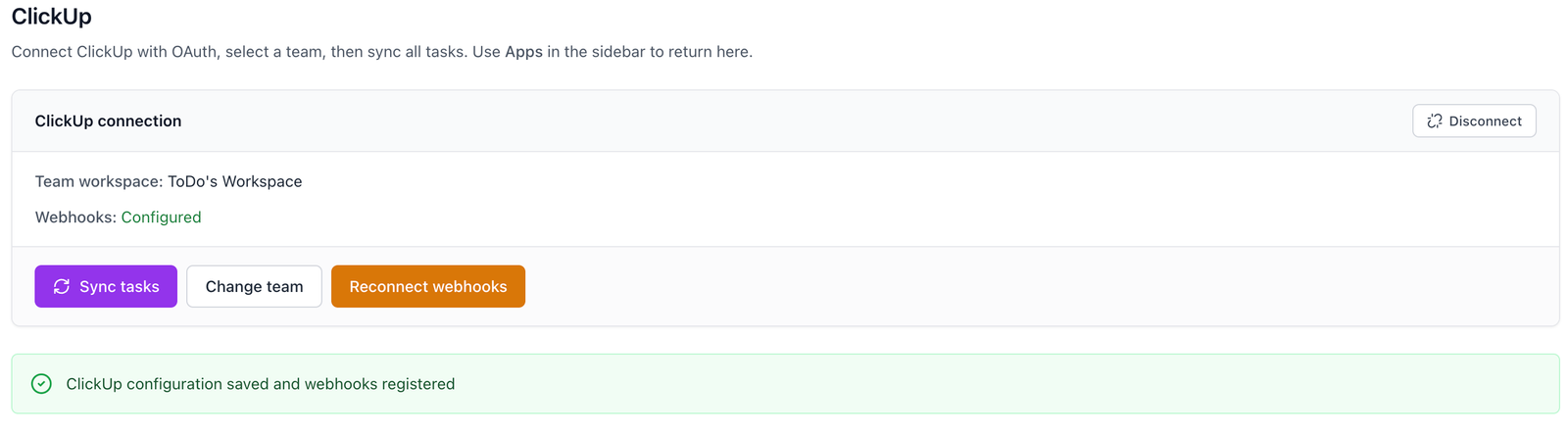
When webhooks are enabled, CodeValid receives updates automatically whenever tasks change in ClickUp, so your requirements stay current without manual sync.
What this integration supports
- Initial ClickUp task sync into CodeValid
- Ongoing updates through ClickUp webhooks
- Mapping a ClickUp workspace/team to a CodeValid workspace
- Manual refresh with Sync tasks when needed
Troubleshooting
- If ClickUp fails to connect, verify your ClickUp OAuth permissions and try reconnecting.
- If the workspace does not appear, confirm your ClickUp account has access to that team.
- If webhook updates do not arrive, try clicking Reconnect webhooks and ensure your ClickUp session is still active.
If problems persist, disconnect and reconnect ClickUp from CodeValid, then repeat the workspace selection and webhook setup.