Connect Your Zoho Projects with CodeValid
Connect Zoho Projects with CodeValid to automatically pull requirements from your Zoho board and keep them in sync as tasks change. This guide walks you through connecting your workspace in CodeValid and configuring a Zoho workflow webhook so updates flow in without manual sync.
You need a Zoho Projects account with access to the project that stores your workspace requirements. An admin or project manager role is usually required to create workflow rules and webhooks.
Part 1: Connect Zoho in CodeValid
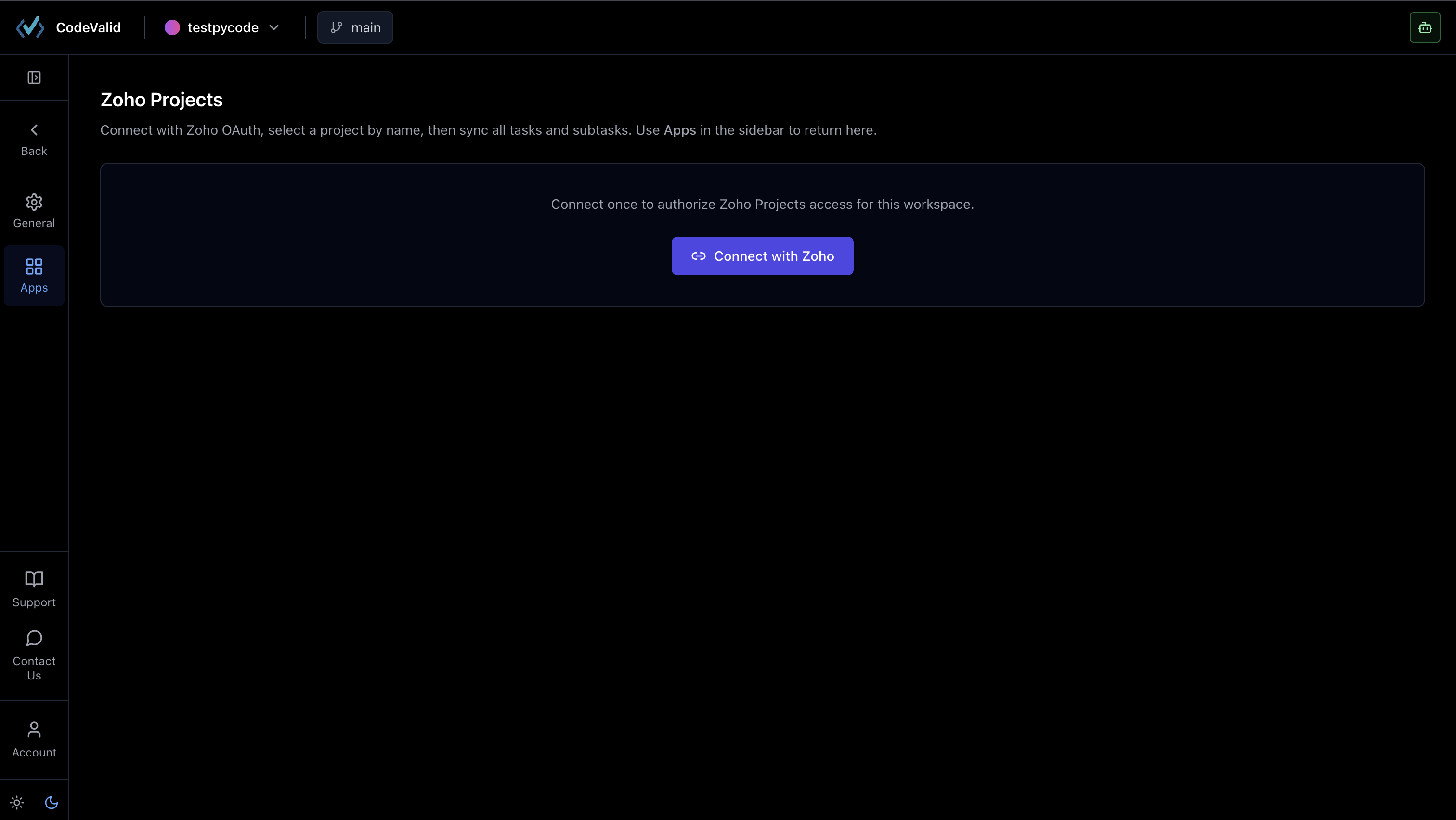
Step 1: Open the Zoho app
- In CodeValid, go to Settings → Apps.
- Click Zoho.
- Click Connect with Zoho.
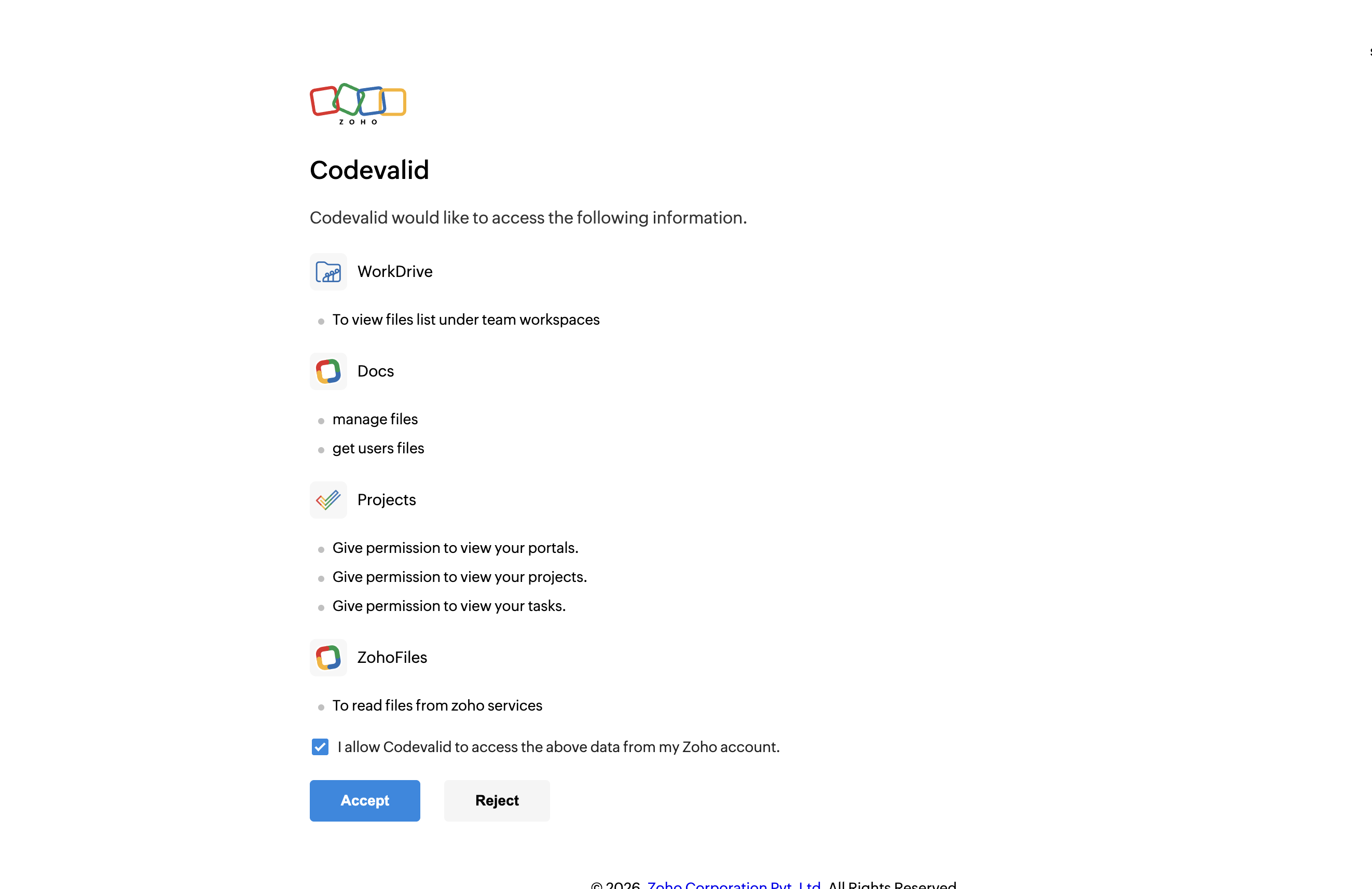
Step 2: Authenticate with Zoho
You are redirected to the Zoho sign-in page. Sign in and approve access so CodeValid can read your project data.
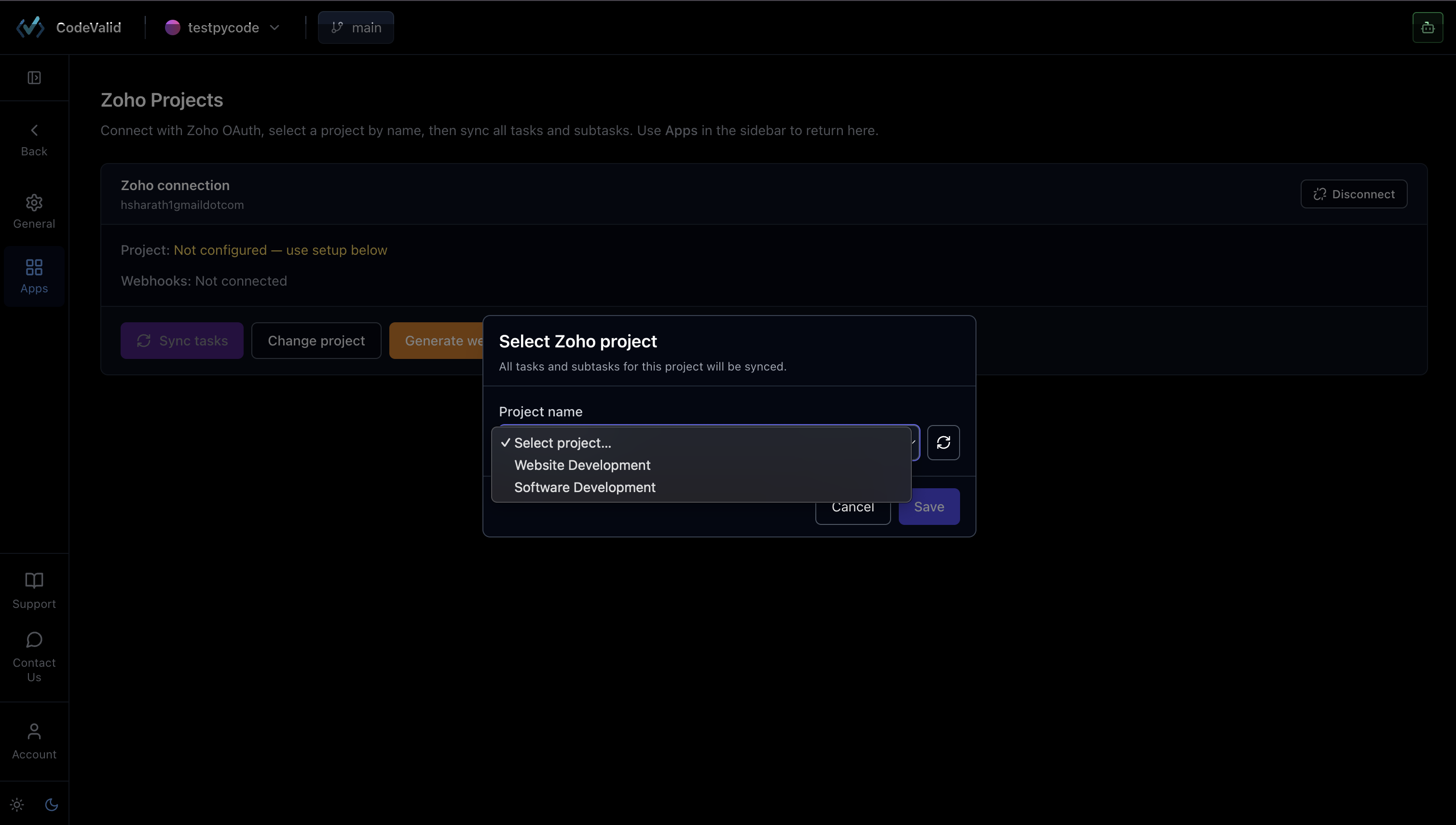
Step 3: Select your Zoho project
After authentication, choose the Zoho project where this workspace’s requirements are stored. Each CodeValid workspace should map to one Zoho project.
Step 4: Sync requirements
Click Sync to import all requirements from the selected Zoho project into CodeValid.
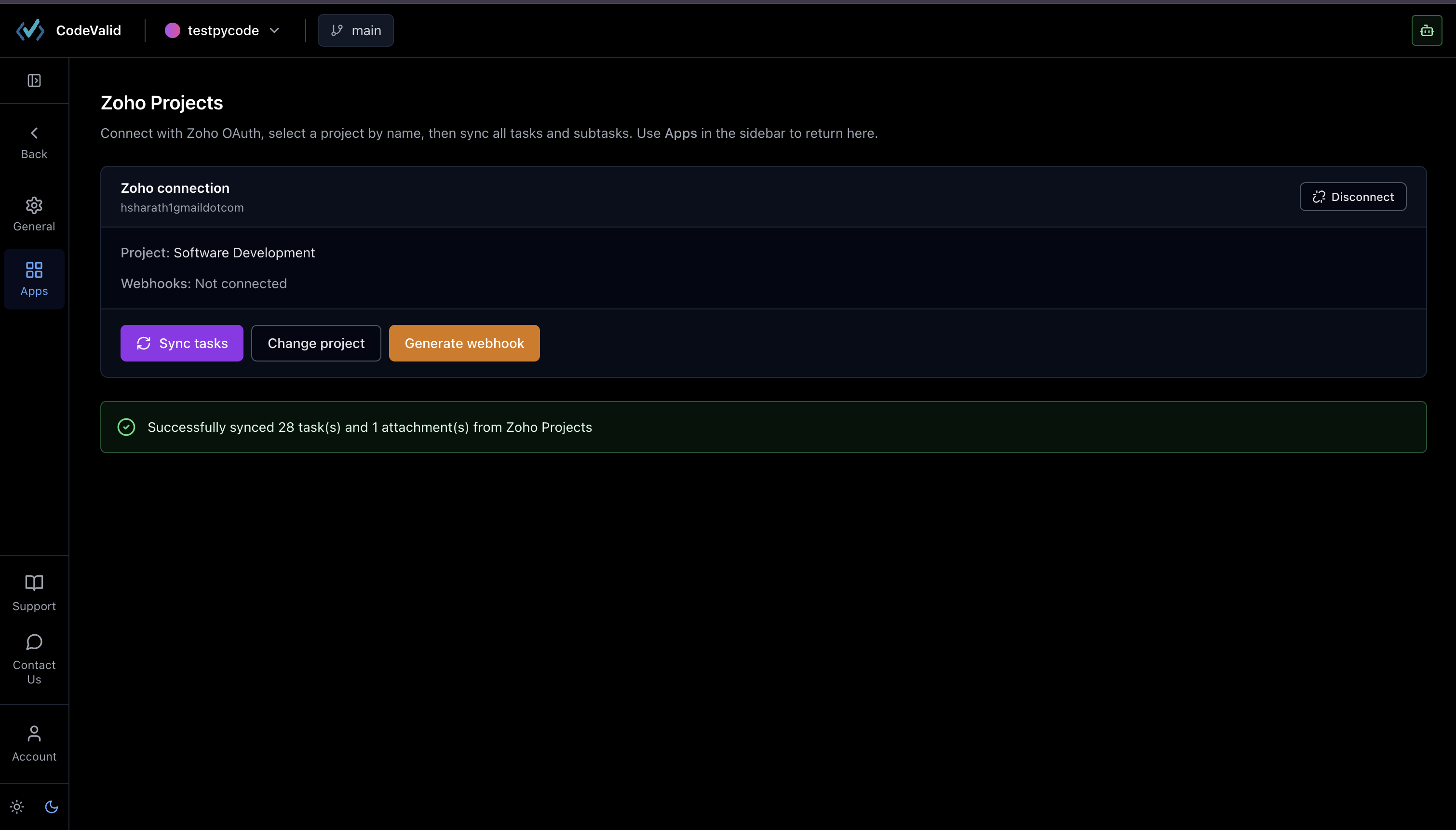
Your initial connection is complete. Use Sync anytime you want to pull the latest tasks manually.
Part 2: Configure the webhook (recommended)
Why set up a webhook?
With only the connection above, you must click Sync after changes on the Zoho board. A webhook lets Zoho push updates to CodeValid whenever a task is created or modified, so requirements stay current without manual sync.
A webhook is a notification URL. When something changes in Zoho (for example, a task is updated), Zoho sends an HTTP request to CodeValid with the task details. CodeValid processes that payload and updates your requirements automatically.
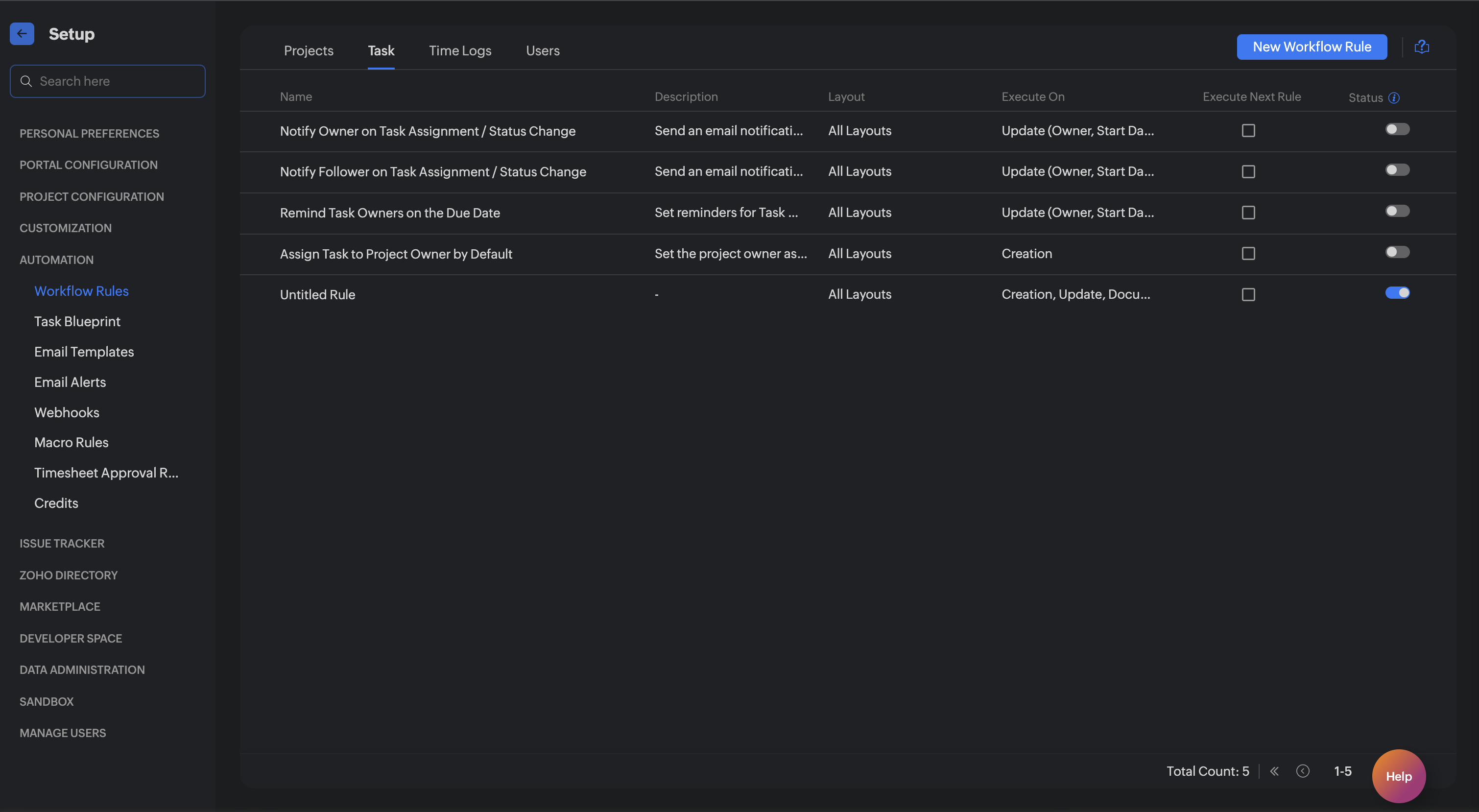
Step 1: Open workflow rules in Zoho
- In your Zoho project, open Settings (gear icon next to Zoho).
- Go to Automation → Workflow Rules.
- Navigate to tasks tab.
- Click Create (or New Workflow Rule) to add a rule.
Need help with workflow rules in Zoho? See Zoho’s official guide to configuring workflow rules for detailed navigation and setup steps.
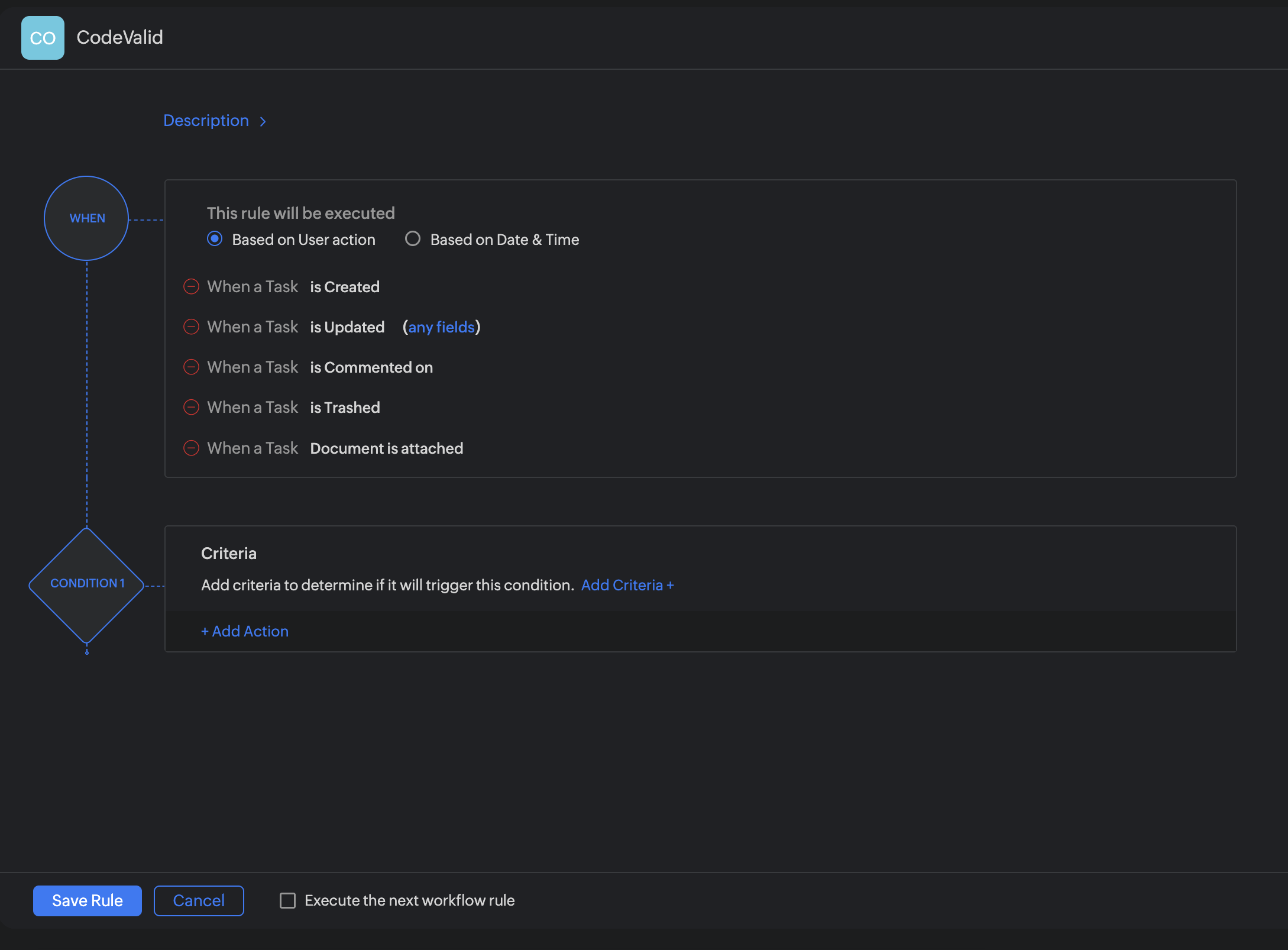
Step 2: Define when the rule runs
- Under When, click Add row.
- Add all task modification events you want CodeValid to react to (for example: task created, updated, status changed, and similar task events).
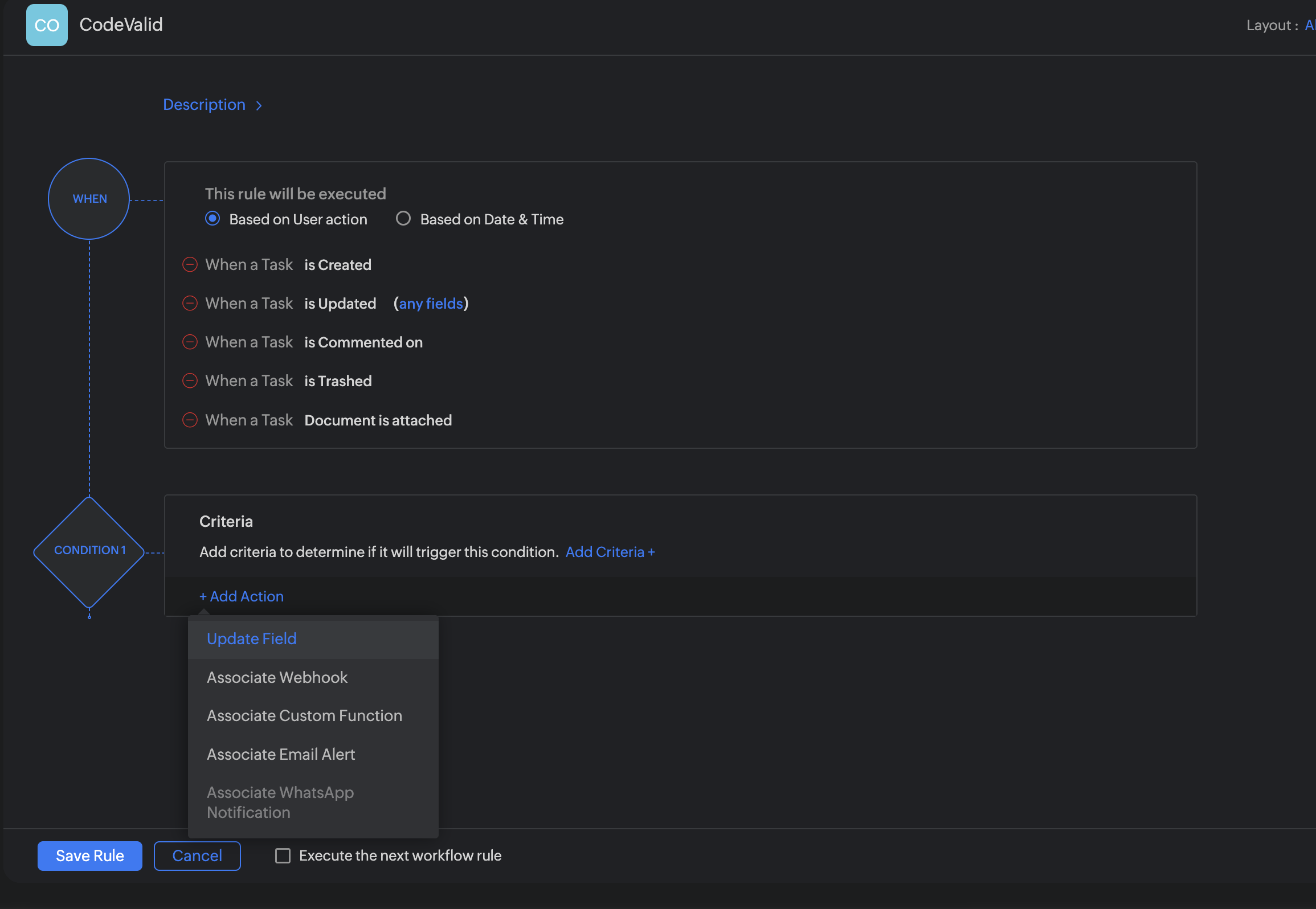
Step 3: Add a webhook action
- Click Add Action (or Associate action).
- Select Associate Webhook (or Webhook).
Step 4: Configure the webhook URL and parameters
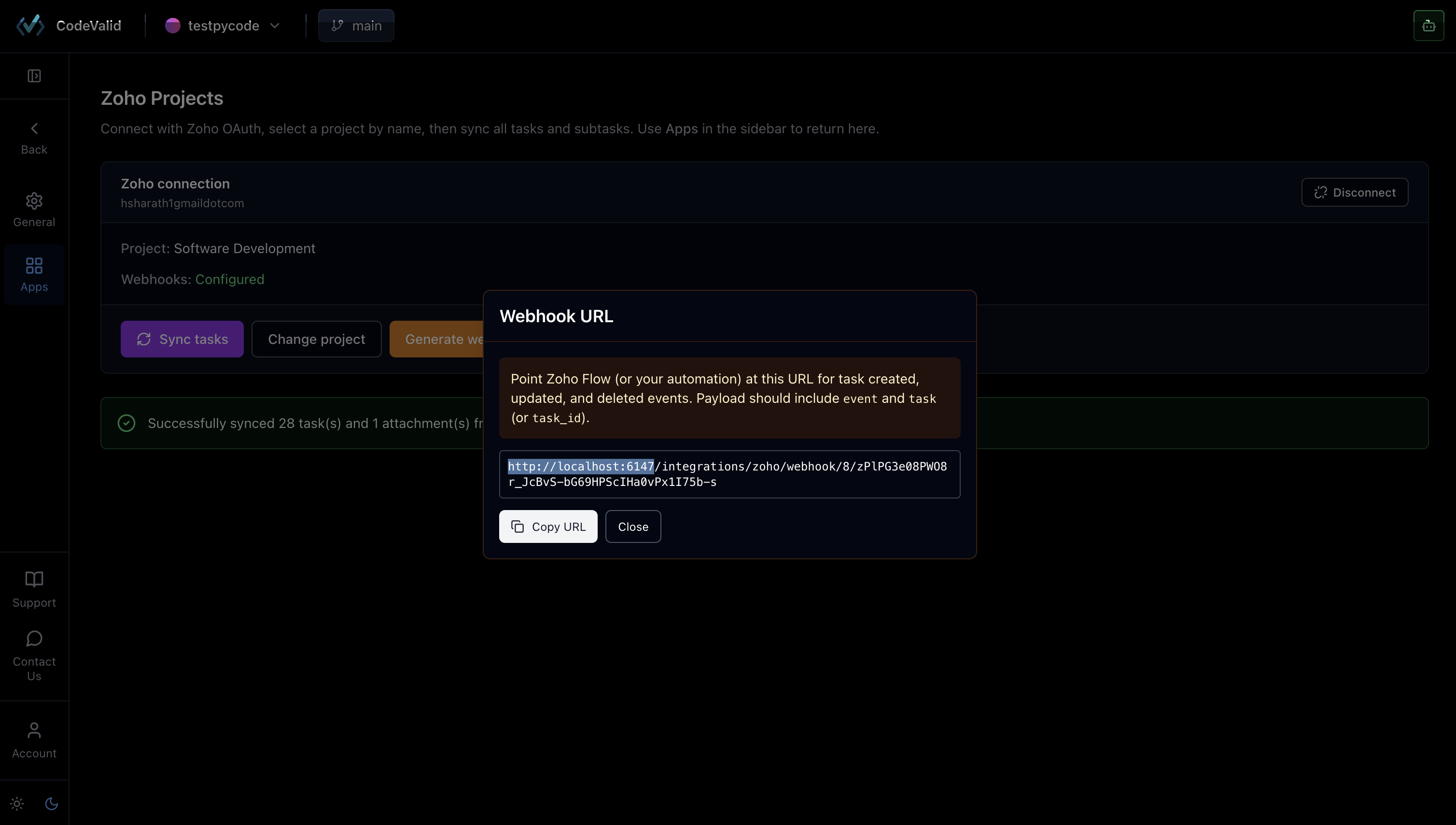
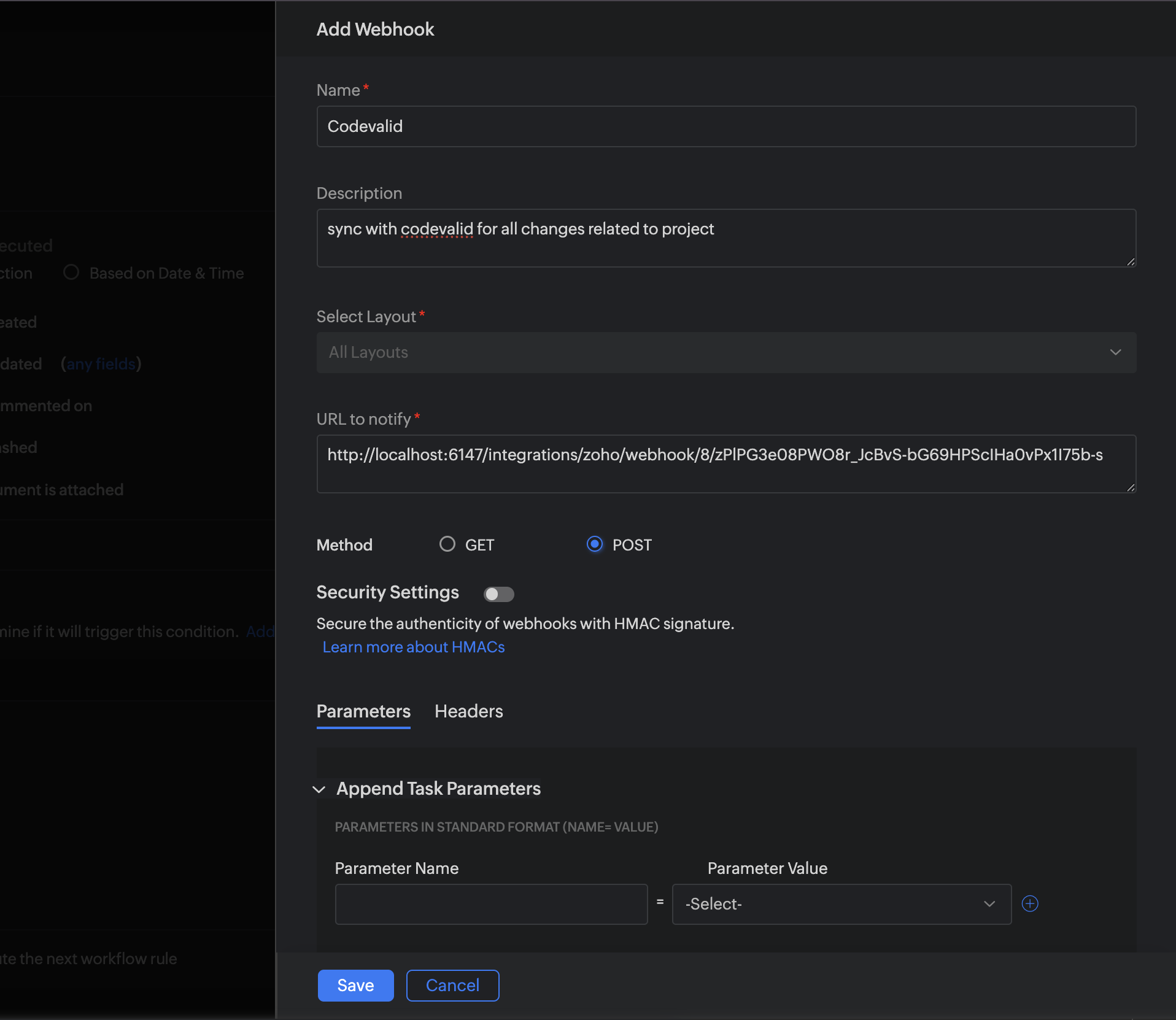
Webhook URL
- In CodeValid, open Settings → Apps → Zoho and copy the Webhook URL shown on that page.
- In Zoho, paste that value into URL to notify.
Parameters
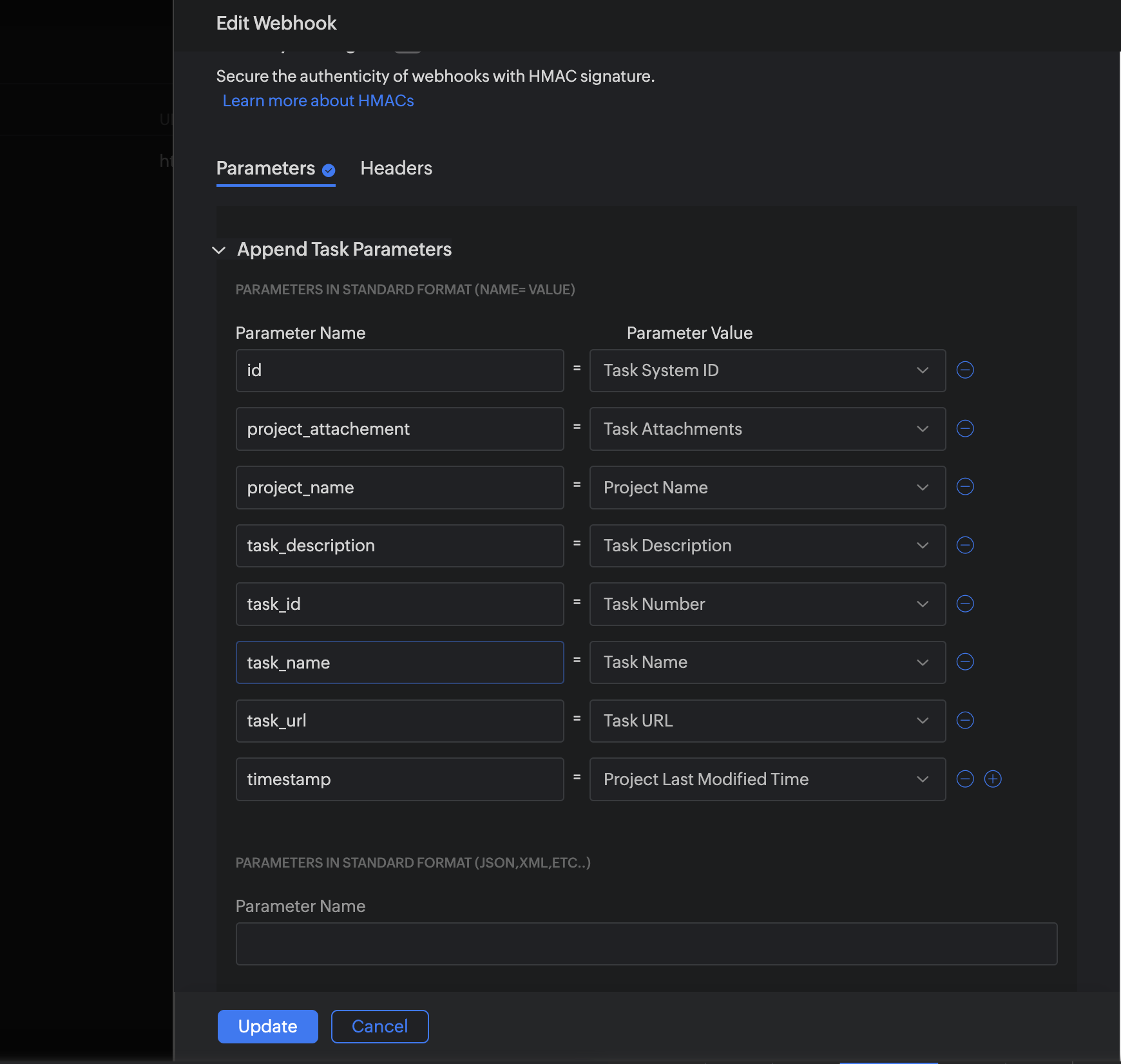
Add the following parameters in the webhook configuration. Map each parameter to the matching Zoho task field (see your Zoho field picker when saving the rule).
| Parameter name | Description |
|---|---|
id | Unique identifier for the webhook event or record |
project_attachement | Project attachment reference (use the field name as shown in your Zoho project) |
project_name | Name of the Zoho project |
task_description | Task description or body text |
task_id | Zoho task ID |
task_name | Task title |
task_url | Direct link to the task in Zoho |
timestamp | Time of the change |
- Save or update the webhook, then Save the workflow rule.
- For each parameter, select the corresponding parameter value from Zoho’s field list.
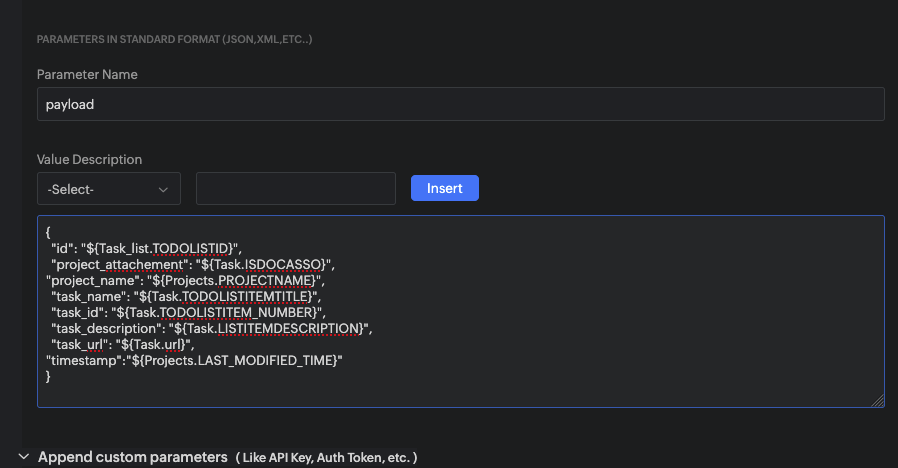
- Under Parameters in standard format (JSON, XML, etc.), set the Parameter Name to
payloadand paste the following JSON as the value:
{
  "id": "${Task_list.TODOLISTID}",
  "project_attachement": "${Task.ISDOCASSO}",
  "project_name": "${Projects.PROJECTNAME}",
  "task_name": "${Task.TODOLISTITEMTITLE}",
  "task_id": "${Task.TODOLISTITEM_NUMBER}",
  "task_description": "${Task.LISTITEMDESCRIPTION}",
  "task_url": "${Task.url}",
  "timestamp": "${Projects.LAST_MODIFIED_TIME}"
}
You're done
Zoho is now integrated with CodeValid:
- Connect + Sync — Pull requirements from your chosen Zoho project.
- Webhook — Receive automatic updates when tasks change on the board.
CodeValid handles incoming webhook events and keeps your workspace requirements aligned with Zoho. If something does not update as expected, confirm the workflow rule is active, the webhook URL matches CodeValid exactly, and all parameters above are mapped to the correct Zoho fields.
Quick reference checklist
In CodeValid
- Settings → Apps → Zoho → Connect with Zoho
- Select the correct Zoho project
- Run Sync for the first import
- Copy the Webhook URL from the Zoho app settings page
In Zoho Projects
- Settings → Automation → Workflow Rules → create rule
- When: include task create/update (and related) events
- Action: Associate Webhook
- URL to notify: paste CodeValid webhook URL
- Parameters: add all eight parameters and map each to the right Zoho field
- Save the rule and ensure it is enabled